Cropping full-page screenshots in Safari on iOS didn't work right

Safari on iOS (and iPadOS) includes a little known feature, that enables you to take screenshots of the whole page instead of just the part currently visible on screen, but it didn't work completely right.
How it should work
To use the feature just take a screenshot like you normally would and then tap on the little preview appearing in the bottom corner:
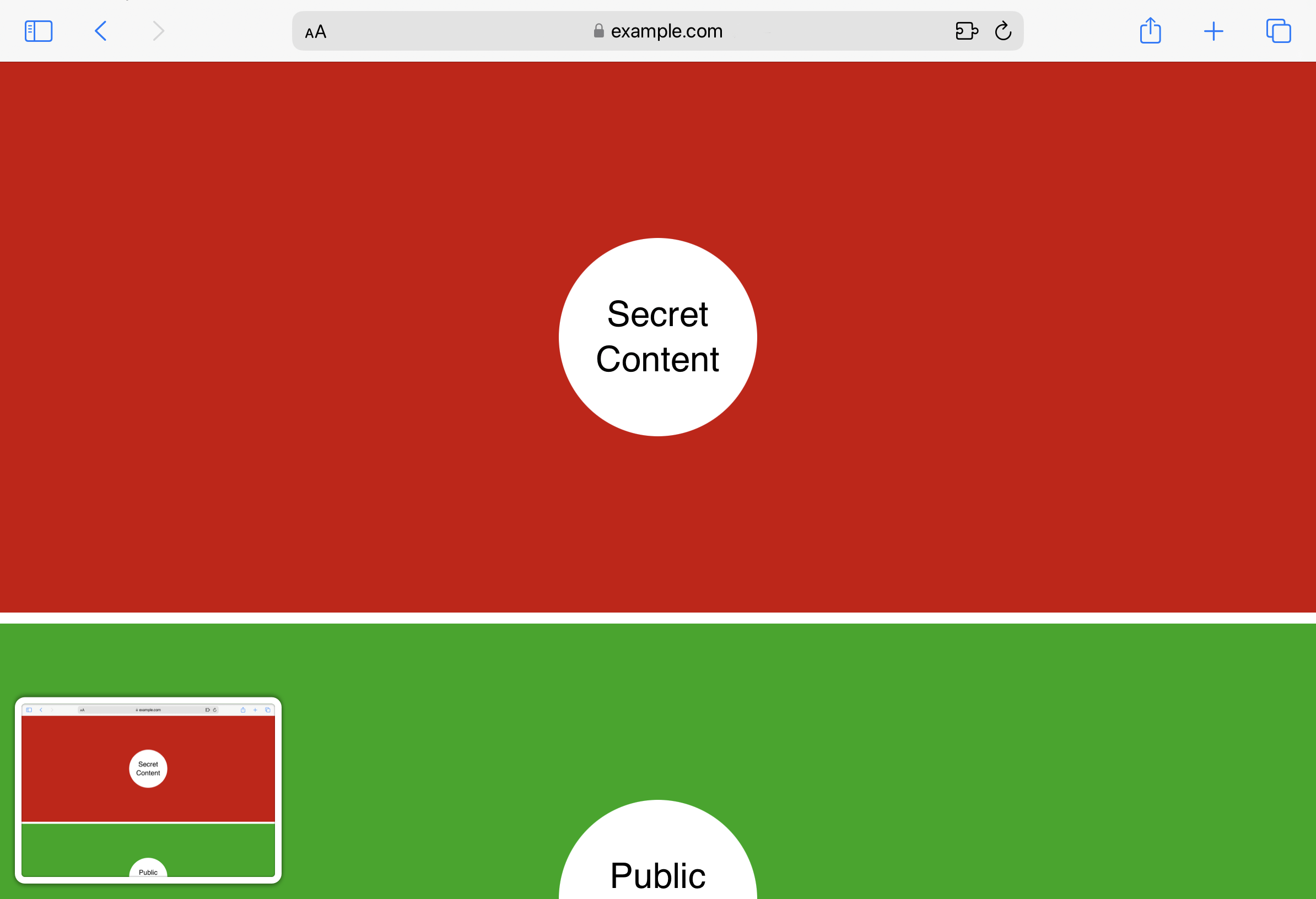
Now you can choose "Full Page" instead of just "Screen":
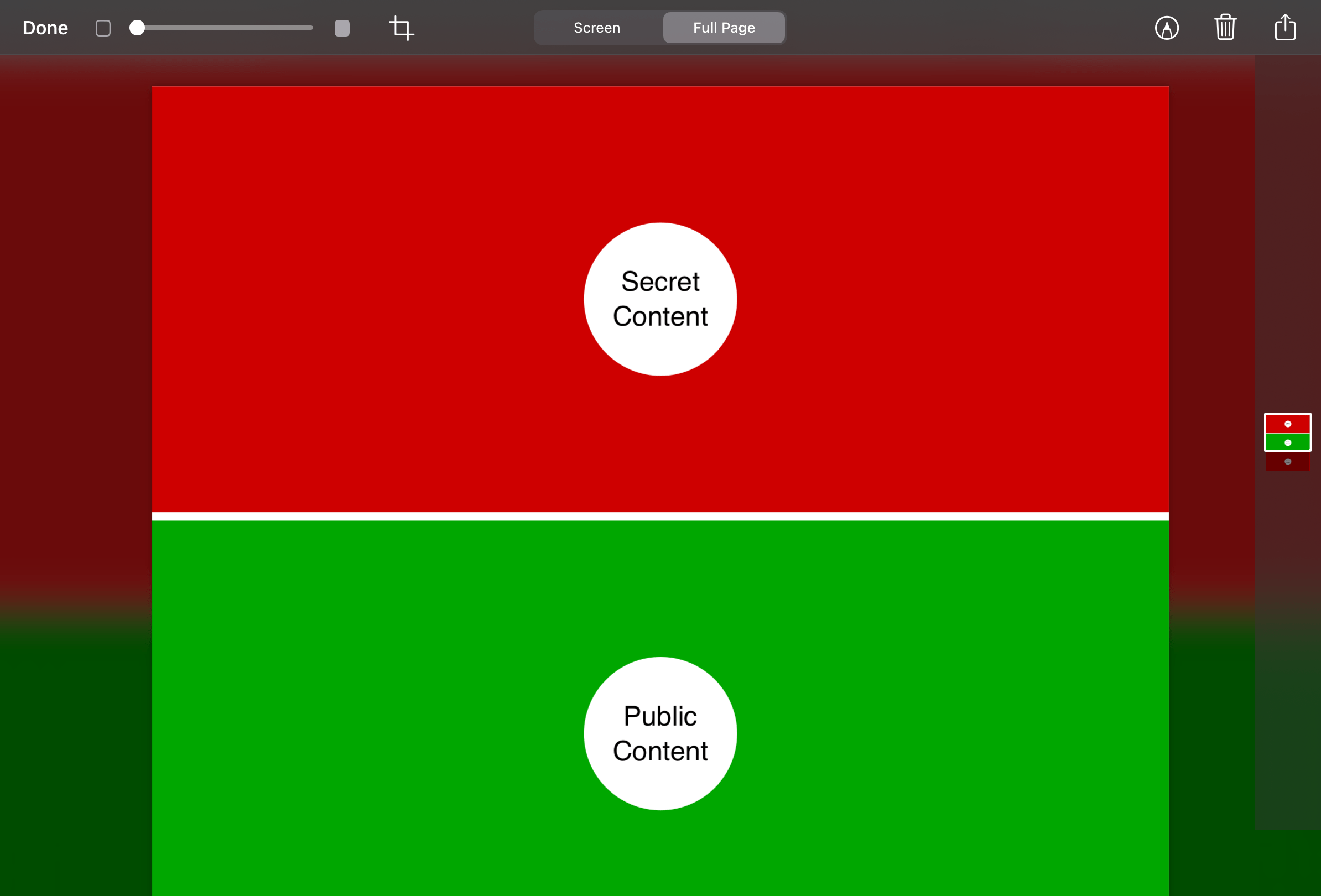
You can also tap the crop icon at the top to crop that screenshot of the full page:
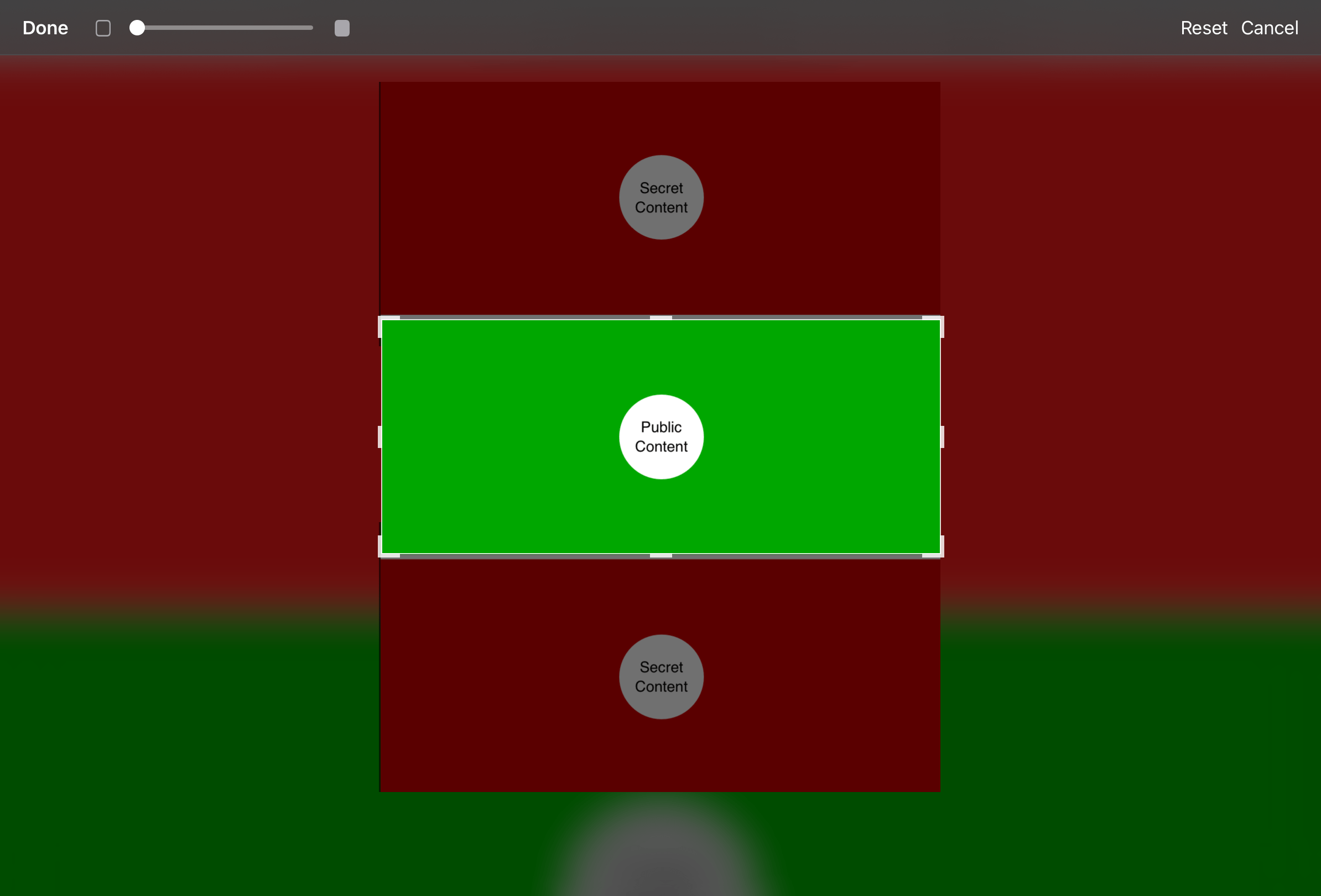
Then when you are done you get a nice PDF file (or since Summer 2023 alternatively an image) of only that cropped full-page screenshot. Or at least that's what it seemed like.
How it didn't work
If you open that PDF file with that cropped full-page screenshot, you of course see only the cropped part like you would expect:

But is that really all that's in the PDF file? There are many ways to inspect PDF files, but we don't even need some fancy tools. We can just use a simple Shortcuts workflow like this:
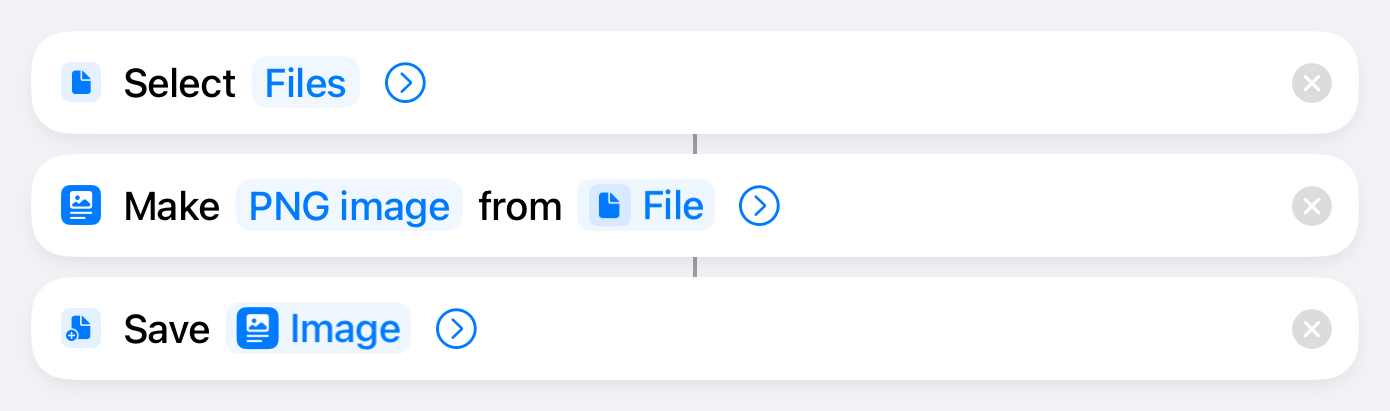
And when we run it with the PDF file this is the exported image we get:
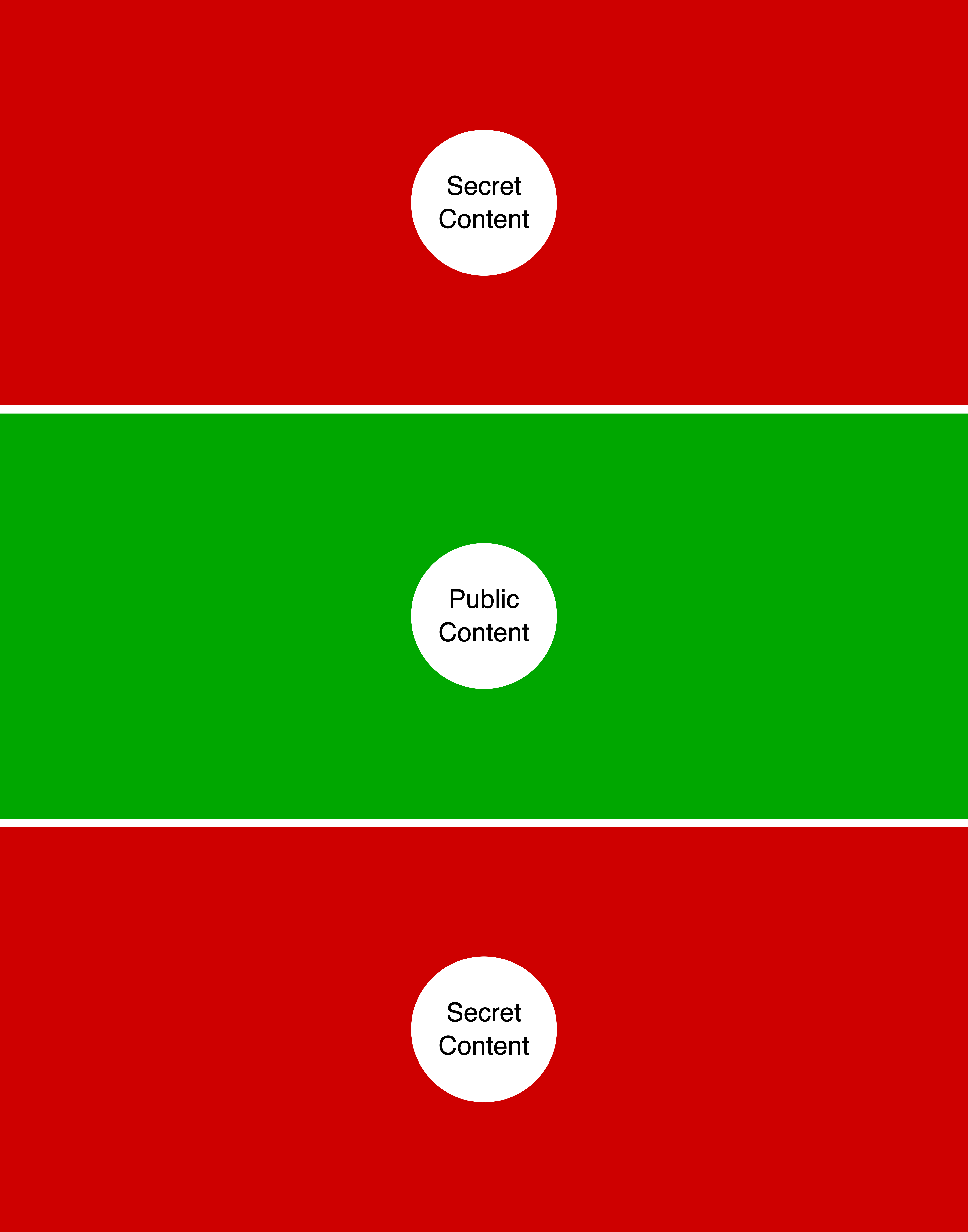
Ups, the cropped away parts are back. So in reality the cropped parts where always in the file, but the PDF file was just configured to only show the cropped part. I think it's pretty obvious why this is bad. Those parts are often cropped away for good reasons and may include very sensitive information.
If that's so bad, why was it done this way?
It has its benefits to store the actual content as layout data in a PDF file instead of just an image. This makes the PDF file size smaller and allows you to use other PDF features like text selection, that wouldn't be really possible with just an image.
It's extremely hard though to extract only a certain part of a webpage as layout data and still have it looking right. It's easier to just convert the whole webpage to PDF layout data and then tell the PDF to only actually show a certain part of it.
So whoever did this wasn't stupid. They actually did a clever thing. They just didn't pay enough attention to the privacy and security implications.
The solution
As soon as I stumbled upon this I submitted this issue to Apple and according to them it was partly fixed with iOS/iPadOS 16.6 (and iOS/iPadOS 15.7.8).
But it was not completely fixed with that. There was still another more complicated way left to read the content of some cropped away parts. Therefore I submitted a new issue for this and Apple continued working on improving it.
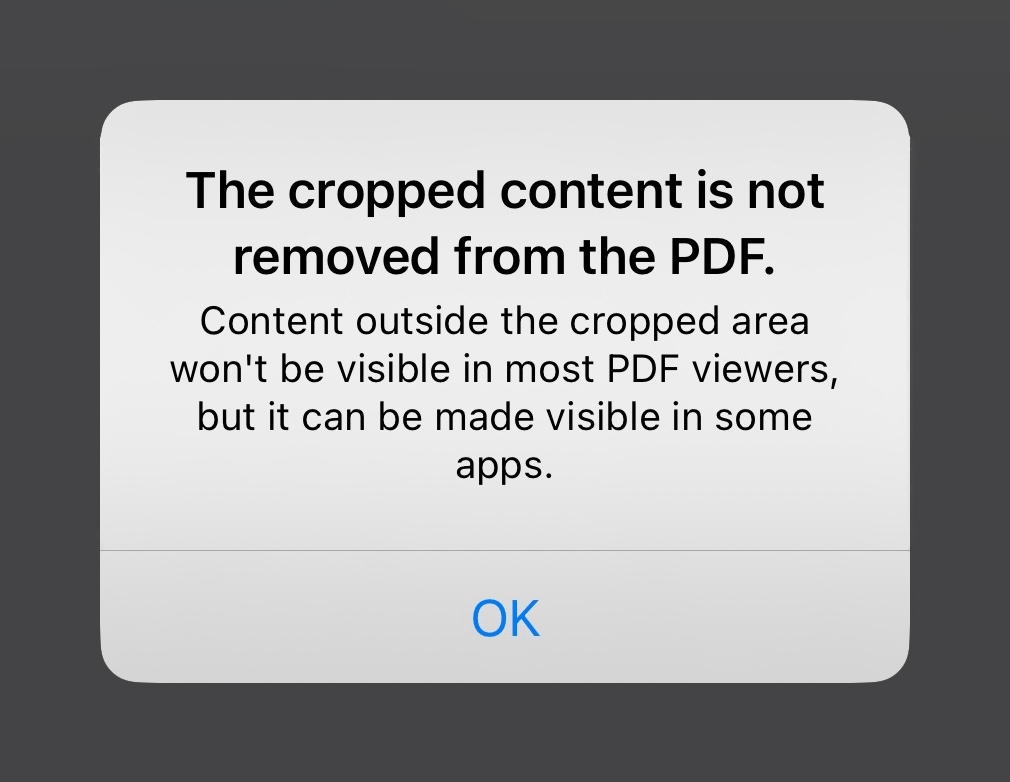
With iOS/iPadOS 18.3 I now consider it fixed. Apple apparently wasn't able to find a good way to always reliably remove all cropped parts from the PDF while keeping the layout intact. So they did the next best thing and now just show an alert warning the user about the cropped content remaining in the PDF file. That of course means you still need to be careful about sharing those cropped PDF files and remember the cropped parts might still be secretly there. But I think the alert is an easy and satisfactory solution. It gives the user the possibility to make an informed decision instead of restricting or removing the feature, which is a good and rare thing for Apple to do.
Safari full-page screenshots, that you just saved as an image like it is possible since Summer 2023, never had this problem to begin with. So if you really need to crop something sensitive away, use that option instead.